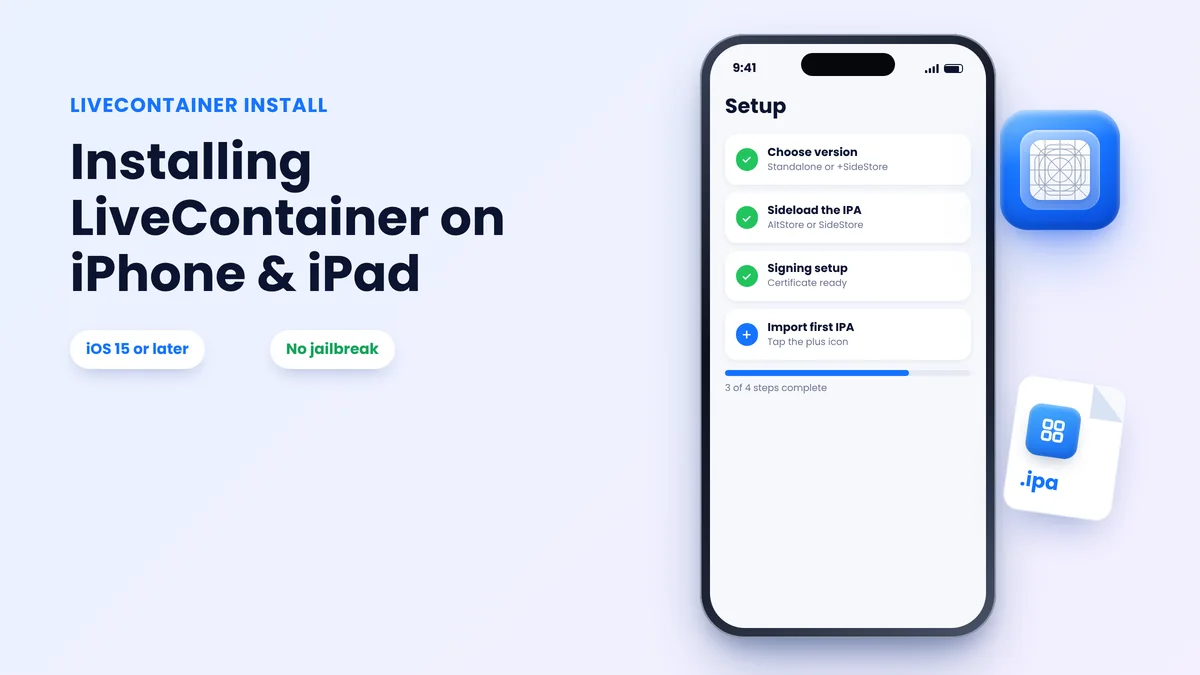
LiveContainer install steps look slightly different from installing a normal app, because LiveContainer is not listed on the App Store. It is sideloaded with a tool such as AltStore or SideStore, and once it is on your device it becomes the host for every guest app you add later.
The process below covers choosing the right build, getting it onto an iPhone or iPad, completing the signing setup and launching your first guest app. Each part is short, but doing them in the right order avoids most of the problems people report after installation.
What You Need Before You Start
A quick check before downloading saves time later. LiveContainer has a small set of official requirements, and most failed installs come from an unsupported iOS version or an outdated sideloading tool rather than from LiveContainer itself.
| Item | Requirement |
|---|---|
| Operating system | iOS or iPadOS 15 or later |
| Multitasking (optional) | iOS or iPadOS 16.0 or later |
| Sideloading tool | AltStore 2.0+ or SideStore 0.6.0+ |
| Apple account | A free or paid Apple account used by your sideloading tool |
| Guest apps | Decrypted IPA files you are allowed to use |
A computer may be needed for the first setup of AltStore or SideStore, depending on which tool you choose. After that, SideStore is designed to refresh apps from the device itself.
Choosing the Right LiveContainer Build
The official releases offer two packages. Both run guest apps in exactly the same way, so the choice mainly affects how you install and refresh the host app over time.
Standalone LiveContainer
The standalone package is published as LiveContainer.ipa. It suits people who already use AltStore or SideStore and want to keep that tool separate. LiveContainer simply becomes one more sideloaded app that your existing tool refreshes.
LiveContainer with SideStore
The LiveContainer+SideStore.ipa package has SideStore built in. Combining the two means the setup uses fewer free app slots, which matters when a free Apple account only allows a small number of active sideloaded apps.
- Pick standalone if AltStore is your main tool or you prefer separate apps.
- Pick the SideStore build if you want one combined app with on-device refreshing.
- Use stable builds unless you specifically need a change from a nightly build.
Sideloading LiveContainer onto Your Device
Download the IPA you selected from the official GitHub releases page, then open it with your sideloading tool. AltStore and SideStore both accept an IPA file and sign it with the Apple account you have connected to them.
The official project also publishes AltStore and SideStore source files. Adding the source lets your sideloading tool show LiveContainer updates directly, which is often easier than downloading each new IPA by hand.
Download LiveContainer only from the official GitHub repository. The maintainers warn that closed-source third-party builds could access keychain items and login details from your guest apps.
Completing the Signing Setup
Guest apps need to be allowed to run inside LiveContainer. When JIT is available, code signing is bypassed and guest apps do not have to be signed first. Without JIT, LiveContainer signs guest apps with the same certificate that was used to install LiveContainer itself.
That is why LiveContainer needs access to your sideloading certificate. Its settings provide options for bringing in the certificate from AltStore or SideStore, and the exact wording can change between releases, so follow the labels shown in your installed version.
Signs That Signing Is Working
- Imported IPA files appear in the Apps tab without errors.
- Guest apps open instead of closing straight back to LiveContainer.
- The certificate status in settings reflects the tool you used to install it.
Importing Your First IPA
Open LiveContainer and tap the plus icon in the Apps tab, then choose a compatible IPA file from the Files app. LiveContainer copies the app into its own storage and prepares it for launch, which can take a moment for larger apps.
Another option is the iOS share sheet. Sharing an IPA file or a URL to LiveContainer makes it ask which action you want, so files received from other apps can be added without visiting the Files app first.
Launching and Managing Guest Apps
Tap the app in LiveContainer to start it. Its code loads inside LiveContainer's process and runs much like a normally installed app. Settings for each app include data containers, and options such as Fix File Picker or Fix Local Notifications for apps that need them.
On iOS or iPadOS 16 and later, multitasking can open guest apps in virtual windows that can be resized, and on iPad they can open in separate system windows. You can also add a Home Screen shortcut for any guest app you open often.
Keeping LiveContainer Running After Installation
Sideloaded apps signed with a free Apple account usually expire after seven days. Refreshing LiveContainer in AltStore or SideStore before that point keeps both the host app and the guest apps inside it ready to launch.
- Refresh LiveContainer regularly from your sideloading tool.
- Update through the official source or GitHub releases.
- Back up important guest app data before switching between builds.
- Read the release notes before moving from stable to nightly builds.
Backing Up Before You Reinstall or Switch Builds
Guest apps and every data container live inside LiveContainer's own storage. Deleting the host app removes that storage, so switching from the standalone package to the SideStore package, or reinstalling after a problem, can wipe guest app data unless you prepare first.
Updating in place through AltStore or SideStore keeps the existing data, which makes it the safer route whenever an update is all you need. A full reinstall is best kept for cases where updating fails or you are changing builds on purpose.
- Export documents from guest apps that offer an export option.
- Note which apps you imported so you can find the IPA files again.
- Write down any per-app settings you changed, such as file picker fixes.
Common Installation Mistakes to Avoid
Most failed first installs come from small, avoidable slips rather than from anything complicated. Checking this short list before you start usually turns a frustrating evening into a ten-minute setup.
- Using a sideloading tool older than AltStore 2.0 or SideStore 0.6.0.
- Installing on a device below iOS or iPadOS 15.
- Importing an encrypted App Store copy instead of a decrypted IPA.
- Importing a certificate from a different tool than the one that installed LiveContainer.
- Downloading LiveContainer from an unofficial site or repackaged source.
- Letting the seven-day signature expire before the first refresh.
If something still goes wrong, the troubleshooting guide on this site groups fixes by symptom, starting with the quickest checks.
Conclusion
LiveContainer install steps come down to four decisions: a supported iOS version, the right build, a working sideloading tool and a usable signing certificate. With those in place, importing and launching guest apps takes only a few taps.
Keeping the host app refreshed and using official releases are the habits that keep the setup reliable over time, whichever build you choose.