Multiple Apps
Keep more apps available within one launcher. LiveContainer uses a single App ID, so guest apps do not count against free-account app slots.
LiveContainer lets you run multiple iOS applications through one launcher without installing each app separately on your device. It offers a different approach to sideloading, with flexible app management, support for multiple data containers and no need to jailbreak.
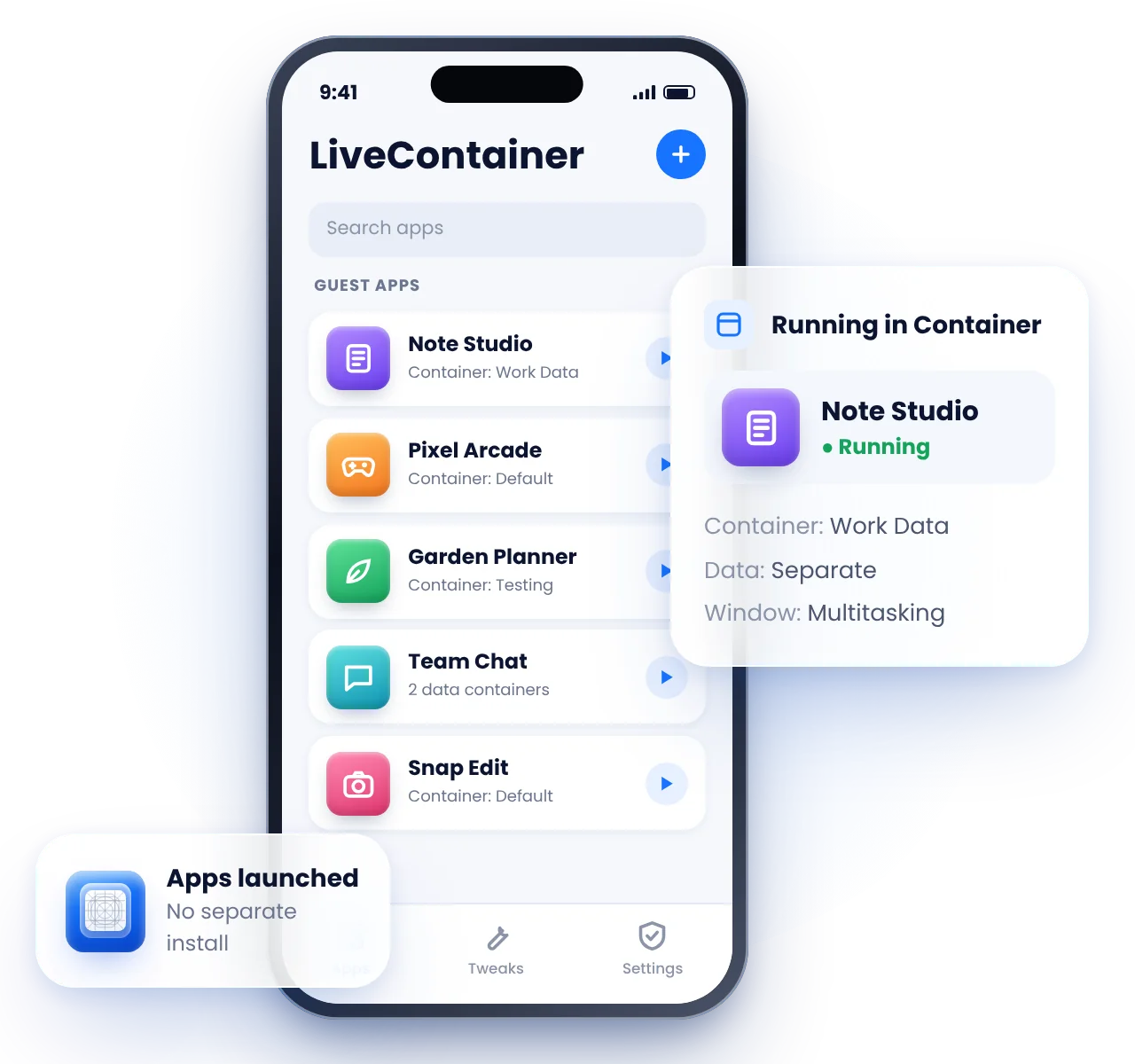
An open-source iOS app launcher that runs compatible applications inside a single host app.
LiveContainer is an open-source iOS app launcher that allows compatible applications to run within a single host app. Unlike an emulator, it works with iOS applications directly, allowing users to manage several apps without installing each one through the usual iOS process.
The project was started by developer Duy Tran (khanhduytran0), and its SwiftUI interface was contributed by hugeBlack. Development now continues under the LiveContainer organisation on GitHub, where the source code, releases and documentation are publicly available.
A normal sideloaded app takes one installation slot and one App ID. LiveContainer itself uses only one app and one App ID, then loads guest apps inside its own process, so the three-app and ten-App-ID limit of free developer accounts does not apply to the apps you add.
LiveContainer loads guest applications into its own process rather than treating each one as a separately installed iOS app. Users can import an IPA file, prepare the application and select it to launch through LiveContainer.
Tap the plus icon in the Apps tab, or share a compatible IPA to LiveContainer through the iOS share sheet.
LiveContainer prepares the guest app and signs it when needed, then lists it with its own settings and containers.
Select the app to start it. Its code is loaded into LiveContainer’s process and starts like any other iOS app.
Move between guest apps, or pick a different data container to open the same app with a separate setup.
A closer look at the tools that give users more control over running and organising iOS applications.
Keep more apps available within one launcher. LiveContainer uses a single App ID, so guest apps do not count against free-account app slots.
Maintain separate data for different app setups. Each container keeps its own documents, preferences and keychain group.
Use supported functions on standard iOS devices. LiveContainer installs through AltStore or SideStore like any sideloaded app.
Work with supported apps through multiple active windows on iOS 16 or later, with resizing and Picture-in-Picture support.
Open compatible apps more conveniently by adding a shortcut for a guest app straight to the Home Screen.
Explore publicly available source code and development updates in the official GitHub repository under the AGPL-3.0 licence.
Practical value for people who sideload, test or organise several iOS apps on one device.
Managing several sideloaded applications can become awkward when each one requires its own installation slot. LiveContainer offers a practical way to organise more applications under a single host app, making it useful for people who regularly test software, experiment with different app versions or want separate app environments.
Before installing LiveContainer, check whether your device meets its system requirements. Compatibility depends on the version of iOS or iPadOS and the installation method you choose.
| Requirement | Current official guidance |
|---|---|
| Operating system | iOS or iPadOS 15 or later |
| Multitasking | iOS or iPadOS 16.0 or later |
| Devices | iPhone and iPad running a supported version |
| Sideloading tool | AltStore 2.0+ or SideStore 0.6.0+ |
| Jailbreak | Not required |
| Guest apps | Decrypted, compatible IPA files |
LiveContainer requires iOS or iPadOS 15 or later on iPhone and iPad.
Running guest apps in virtual windows requires iOS or iPadOS 16.0 or later.
Install and refresh with AltStore 2.0 or later, or SideStore 0.6.0 or later.
Confirm your iOS version, pick a sideloading tool and make sure your guest apps are decrypted IPA files.
The ZIP download contains the official GitHub source code, not an installable IPA. For an iPhone installation, obtain the appropriate IPA from the project’s GitHub releases.
Choose the version that suits your setup. LiveContainer is available as a standalone application or in a package with SideStore integration. Both options serve the same central purpose, but their installation and refresh workflows differ.
The regular build, shipped as LiveContainer.ipa. Install it with AltStore or SideStore and keep your existing sideloading tool as it is.
Shipped as LiveContainer+SideStore.ipa, with SideStore built in. The combined setup needs fewer free app slots and refreshes through SideStore.
Tested builds published on the GitHub releases page. Use these for everyday use and when following setup guides.
Newer changes and experimental features that have had less testing. Read the release notes before switching.
From trying different app versions to keeping separate configurations, LiveContainer can be useful in several everyday situations.
A developer compares the current release of an app with an older IPA without removing either one from the device.
A tester signs in with a personal account in one container and a test account in another, switching between them in seconds.
A sideloading user keeps a whole library of guest apps in one launcher instead of juggling three active app slots.
An enthusiast tries tweaks or per-app options on a copy of an app while the everyday setup stays untouched.
One of LiveContainer’s useful capabilities is the option to create multiple data containers for an application. This means you can maintain different configurations or app data without having to replace your existing setup every time.
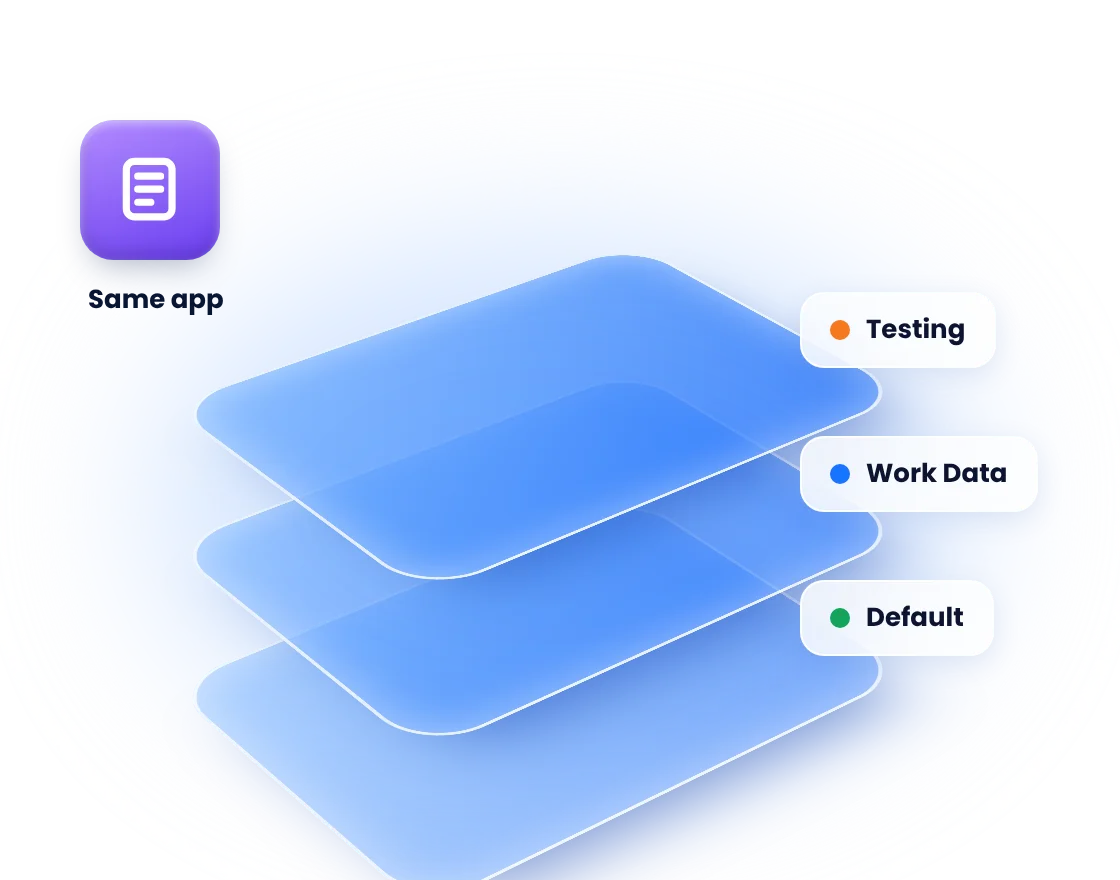
Add a new container from the app’s settings inside LiveContainer. Each container stores its own documents, preferences and sign-in data.
Choose which container an app should open with before launching it, so a work setup and a personal setup never overwrite each other.
Run multiple versions of an app with separate containers, which helps when comparing a new release with an older one.
Important: separate containers keep app data organised, but they do not provide guaranteed security isolation. Guest containers are not sandboxed from each other, so one guest app can access another guest app’s data.
LiveContainer and SideStore can be used together to make app management and refreshing more convenient. The integrated version includes SideStore functionality, reducing the number of free app slots needed for the combined setup.
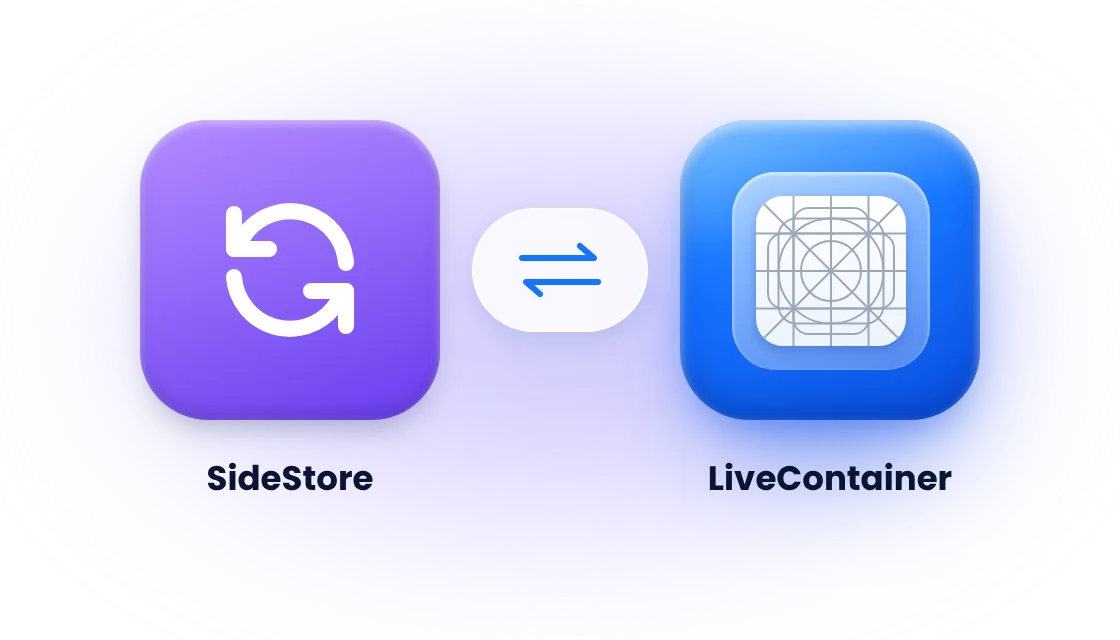
SideStore is an on-device sideloading tool. In the integrated build it signs and refreshes the setup from the iPhone or iPad itself, without a computer for every refresh.
The standalone build sits next to your existing AltStore or SideStore. The LiveContainer+SideStore build combines both into one app, so fewer free app slots are used.
Sideloaded apps still need regular refreshing. With the integrated build, refreshing LiveContainer through SideStore keeps the host app, and the guest apps inside it, ready to launch.
LiveContainer offers greater flexibility, but it does not remove every restriction of iOS. Some applications may depend on permissions, extensions or system capabilities that are not fully available inside the launcher.
Guest app entitlements are not applied to the host app, permissions are shared across guest apps, app extensions are unsupported and remote push notifications do not work.
Guest containers are not sandboxed from each other. Any guest app can read another guest app’s data, so only run apps you trust.
LiveContainer must be installed and refreshed with AltStore or SideStore. Without JIT, guest apps are signed with the same certificate LiveContainer uses.
Every guest app runs inside LiveContainer, so a modified build could see keychain items and login details. Use the official GitHub release.
The official project warns against untrusted, closed-source third-party builds because they may access sensitive data stored within containers. These builds are not supported by the maintainers.
Traditional sideloading installs applications individually, whereas LiveContainer runs guest applications through a shared host. Understanding this difference can help users choose the approach that better suits their needs.
| Consideration | LiveContainer | Traditional Sideloading |
|---|---|---|
| App installation | Inside a host app | Individually on iOS |
| App ID usage | Shared host approach | Usually per installed app |
| Multiple data setups | Supported | Varies by method |
| Refreshing | Refresh the host app | Refresh each app |
| Compatibility | Some limitations | Depends on app and signing |
| App extensions and push | Not supported | Depends on signing method |
Even with the correct setup, users can encounter problems when importing an IPA, signing an application or launching a guest app. Many of these issues have documented explanations and practical solutions.
Check that the app has not expired and refresh it in AltStore or SideStore before trying again.
Use a decrypted, complete IPA file and avoid archives that were renamed or only partly downloaded.
Re-import the certificate from your sideloading tool and confirm it matches the one LiveContainer was installed with.
Try a fresh container, check the per-app fixes and confirm the app does not rely on unsupported extensions.
Refresh before the seven-day window ends and keep SideStore’s pairing and connection setup working.
Short, direct answers about features, compatibility, setup, certificates and data containers.